It happens: no matter how careful you try to be with your phone, there are times when you can’t remember where you last put it—and suddenly, panic sets in. That happened to me a few days ago, but Google Find Hub saved the day and helped me get my phone back.
Google bakes many useful features into Android, but Find Hub is one feature every user should know about. Functioning similarly to Apple’s Find My, it utilizes GPS, cellular signals, and a network of nearby Android devices to provide the approximate location of your phone. It is an essential feature, especially if you tend to misplace your devices.
How to enable Find Hub on your phone
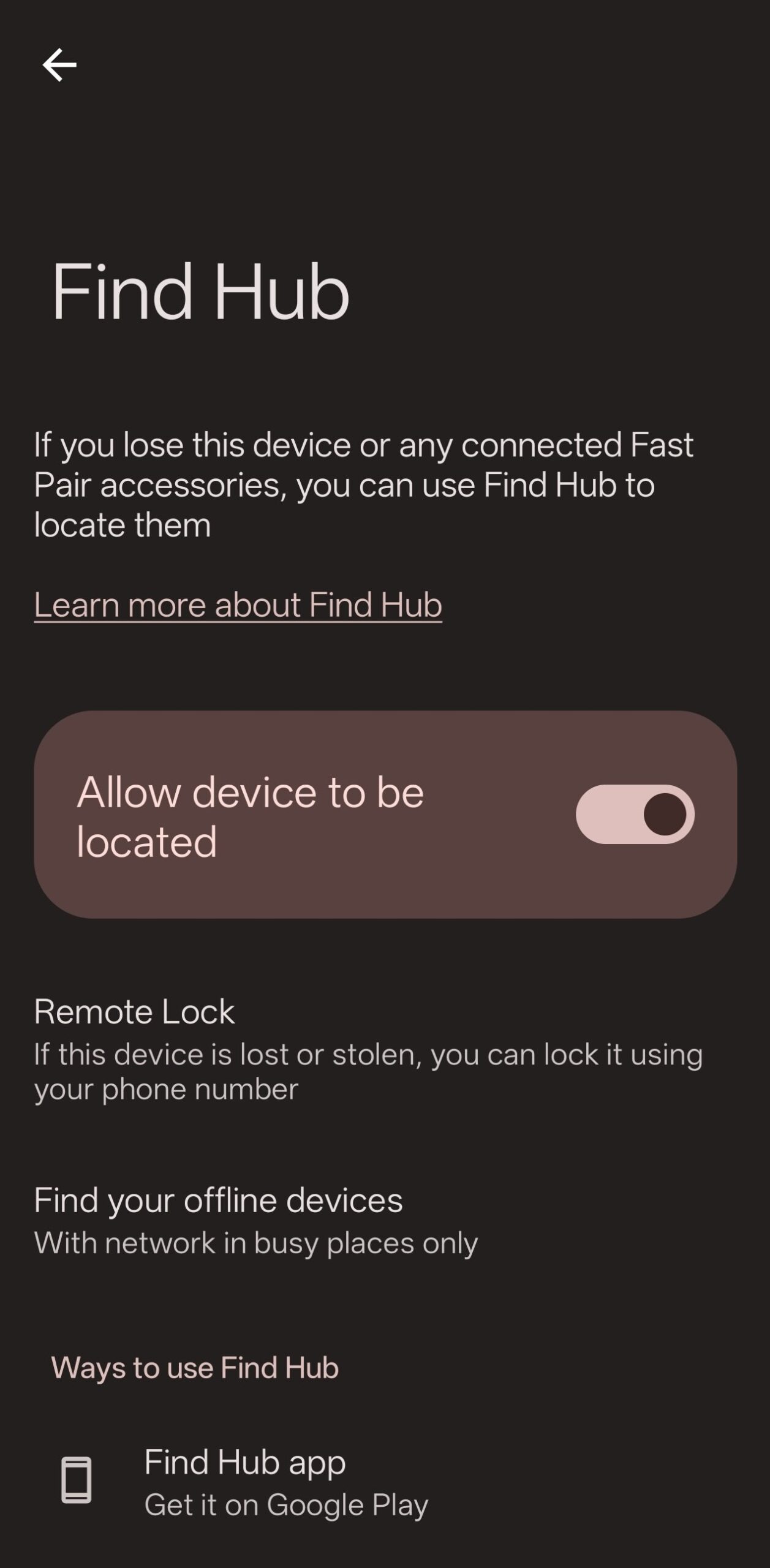
If you’re not sure if Find Hub is enabled on your Android phone, simply go to Settings > Google > All Services > Find Hub. When you reach this setting, simply turn on the toggle for Allow device to be located. ou may be asked to enter your biometrics or device PIN to confirm. Once enabled, your Google account will be able to track your device via the Find Hub app or via the Web Portal.
One thing to note: not all Android phones come preinstalled with Find Hub, so you may need to download it from the Play Store.
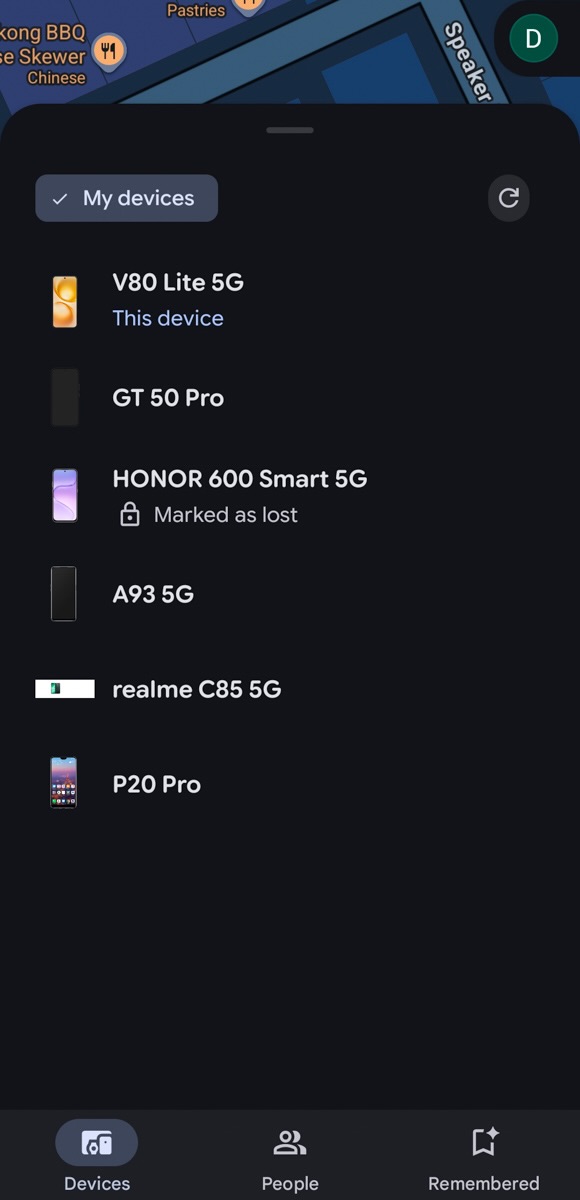
How to use Find Hub
For both the Find Hub app and Web Portal, the home screen displays an overview of all devices linked to your Google Account. Beyond Android phones and tablets, you can also track supported wireless earbuds, Bluetooth tracker tags, and Wear OS smartwatches.
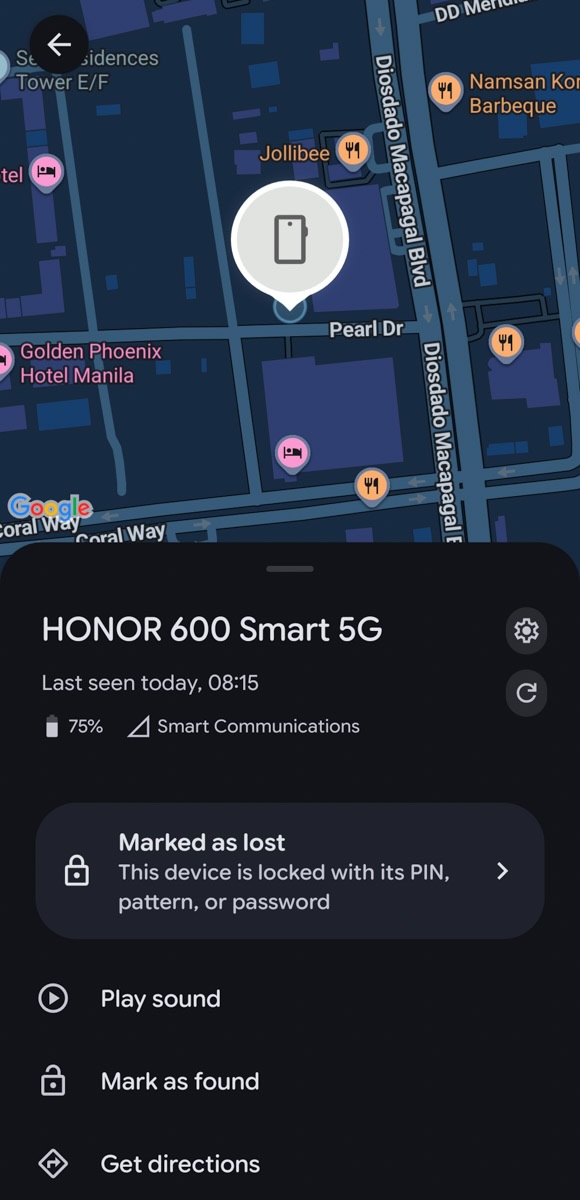
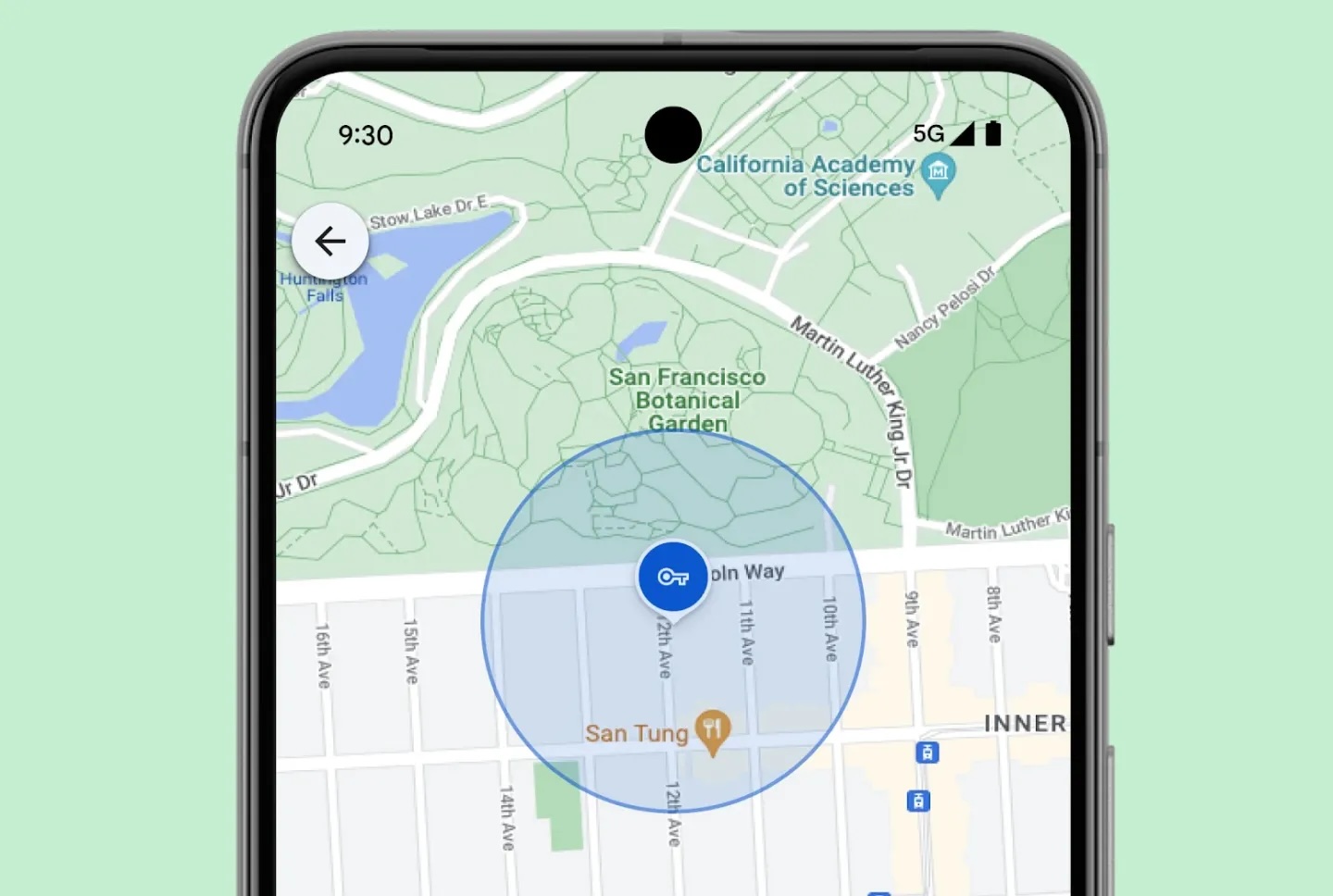
Selecting a device–a phone in this case–brings up its approximate location on a map along with key details, such as battery percentage and current WiFi or cellular connectivity.
There are three options to choose from:
- Play Sound rings your phone at maximum volume for 5 minutes—even if it is set to silent or vibrate—making it easy to locate around the house or when you visit the location on where your phone was last found.
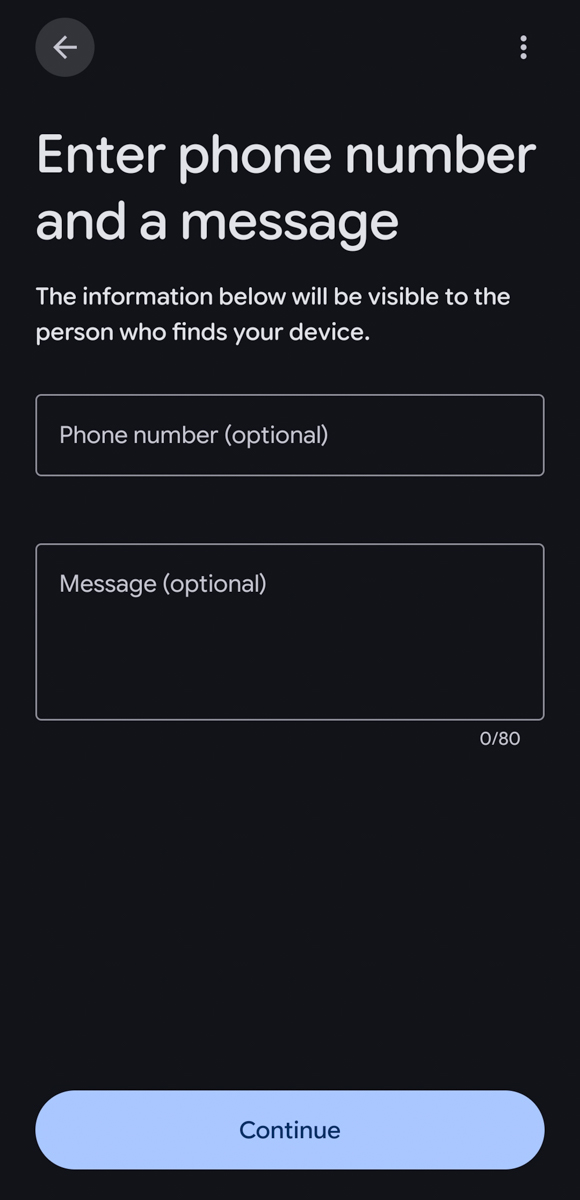
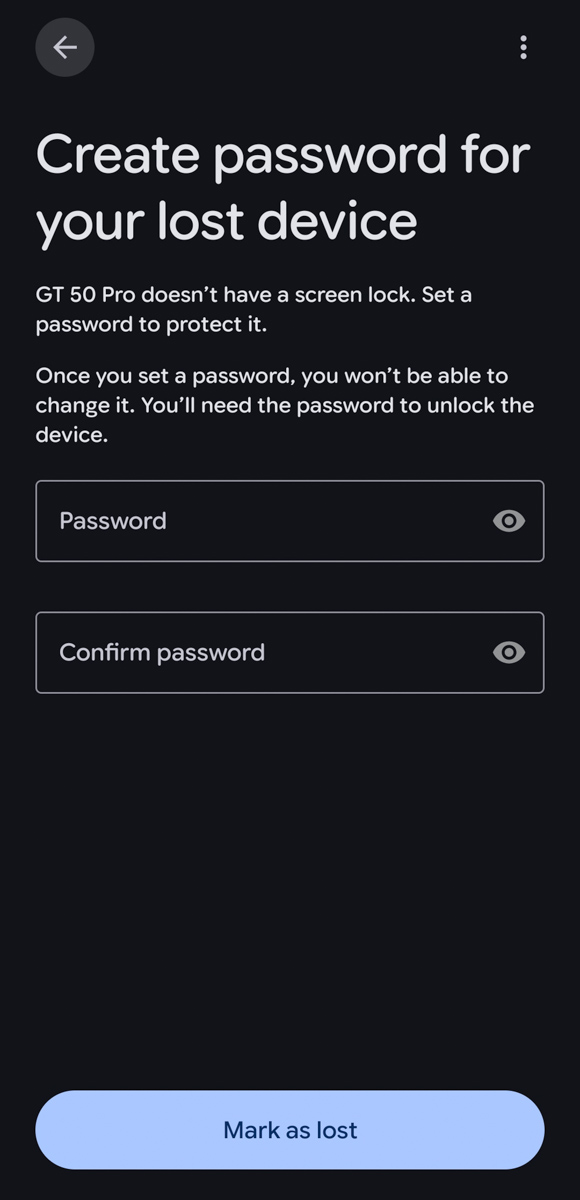
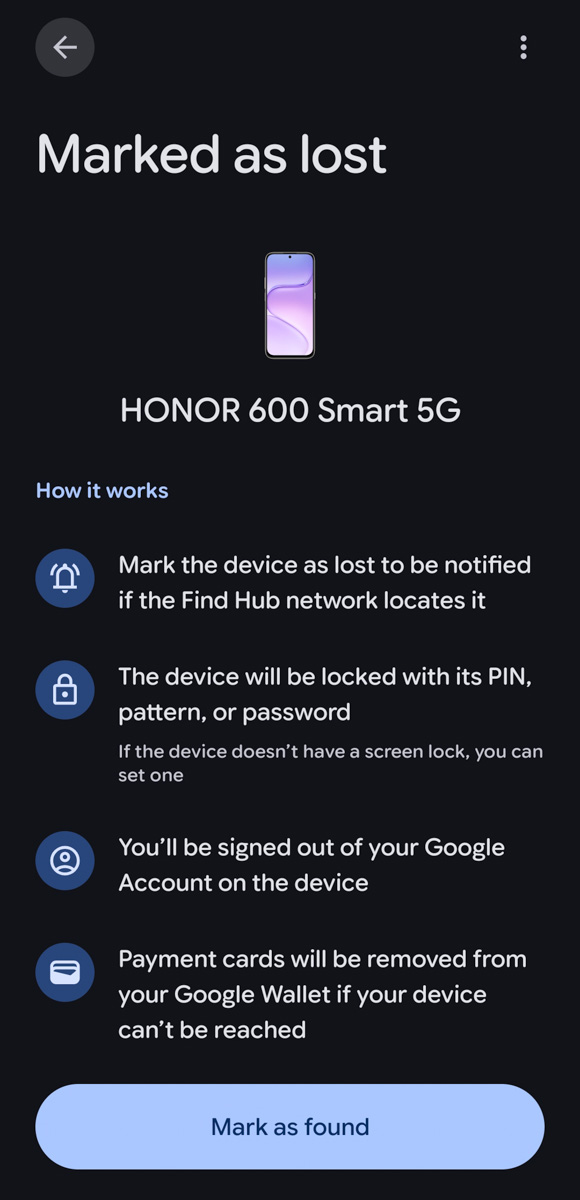
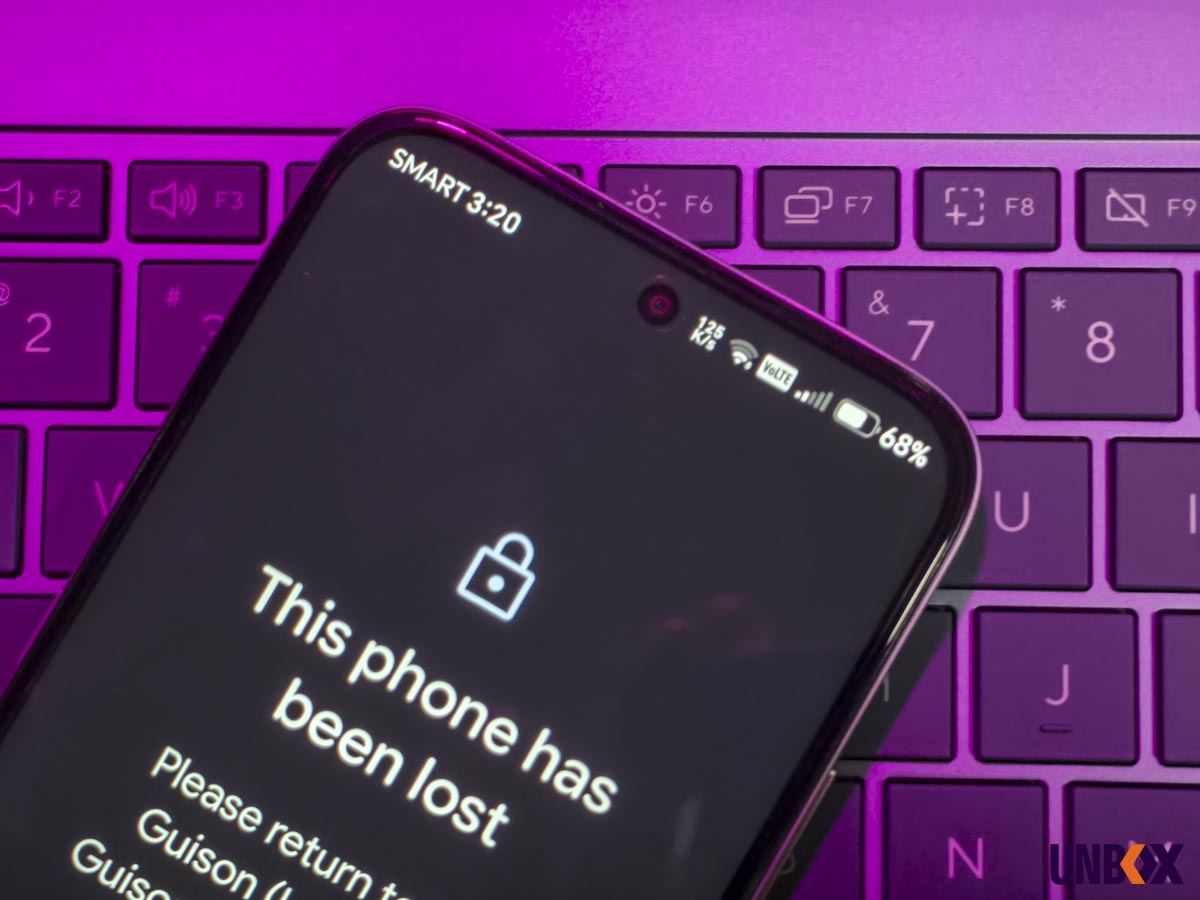
- Mark as Lost locks your phone remotely and displays a custom message and phone number on the lock screen so anyone who finds it can contact you. Once you retrieve your phone, you can unlock it using your standard screen lock or click Mark as Found on Find Hub.
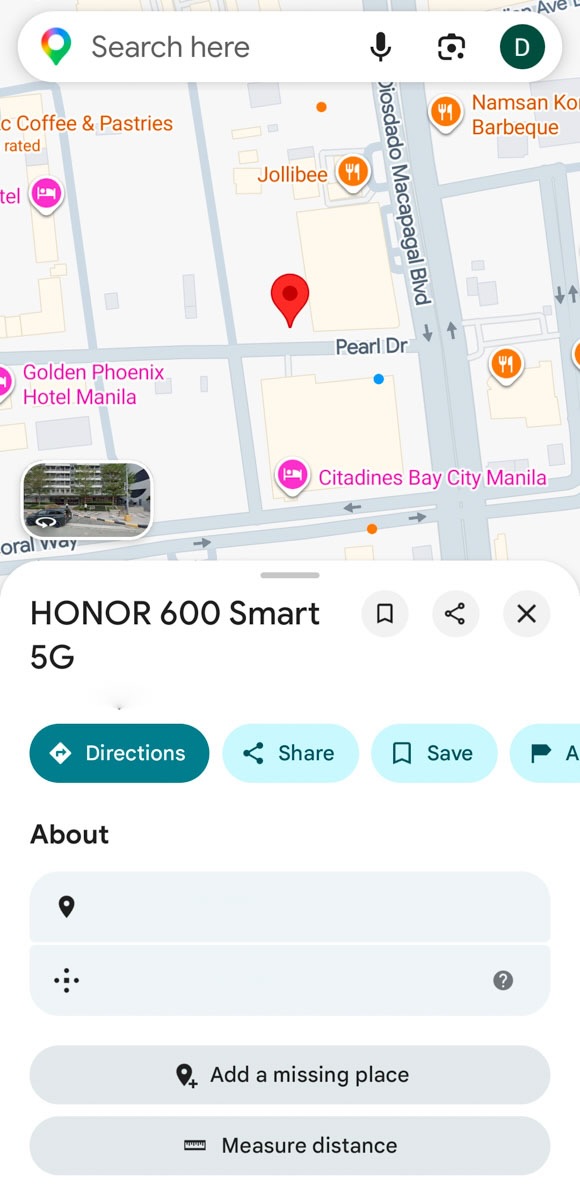
- Get Directions opens Google Maps to show the approximate location of your phone and provides step-by-step navigation to reach it if you left it elsewhere.
What do you do if you can’t find your phone at all?
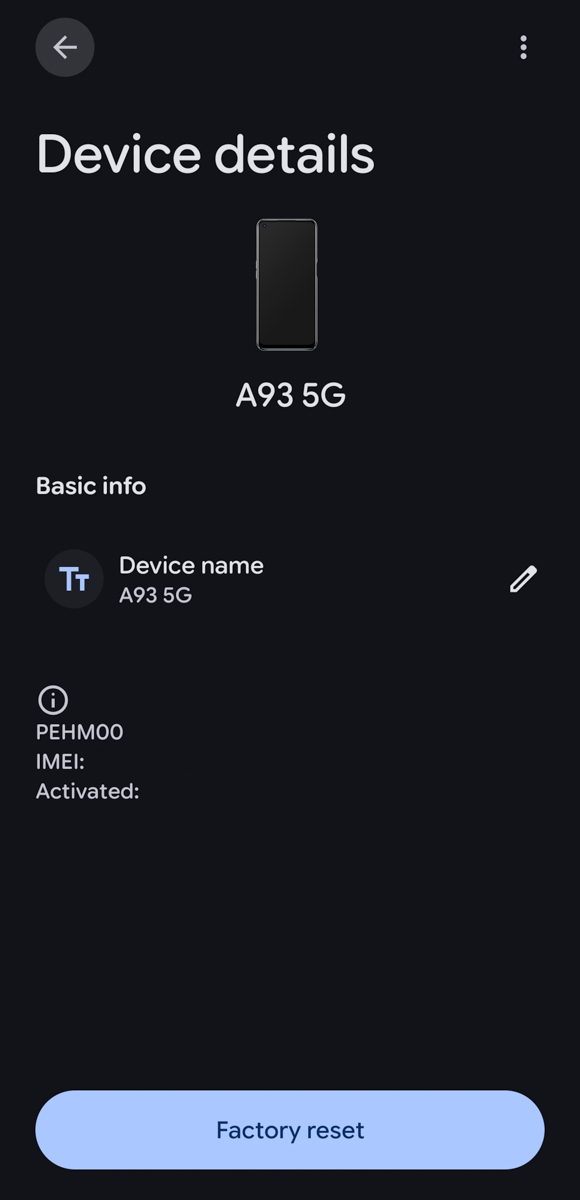
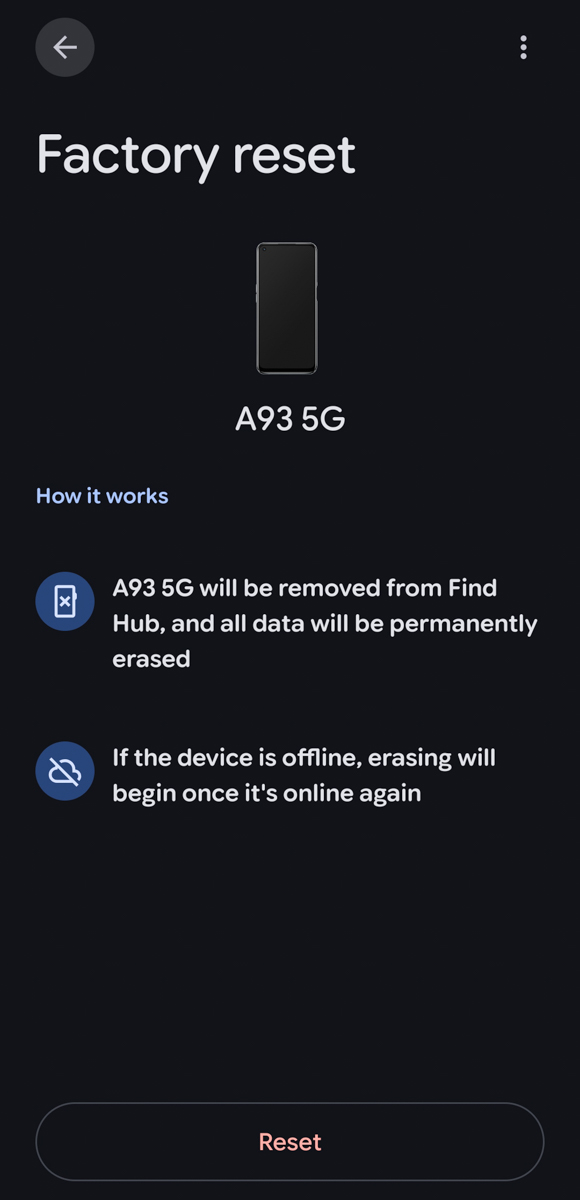
If recovery is impossible, select the Settings icon next to the device name and choose Factory Reset. This action permanently deletes all data on the phone and removes it from your account. You will need to enter your Google Account password to confirm. If the phone is currently offline, the remote wipe will trigger automatically as soon as it powers on and connects to the internet.