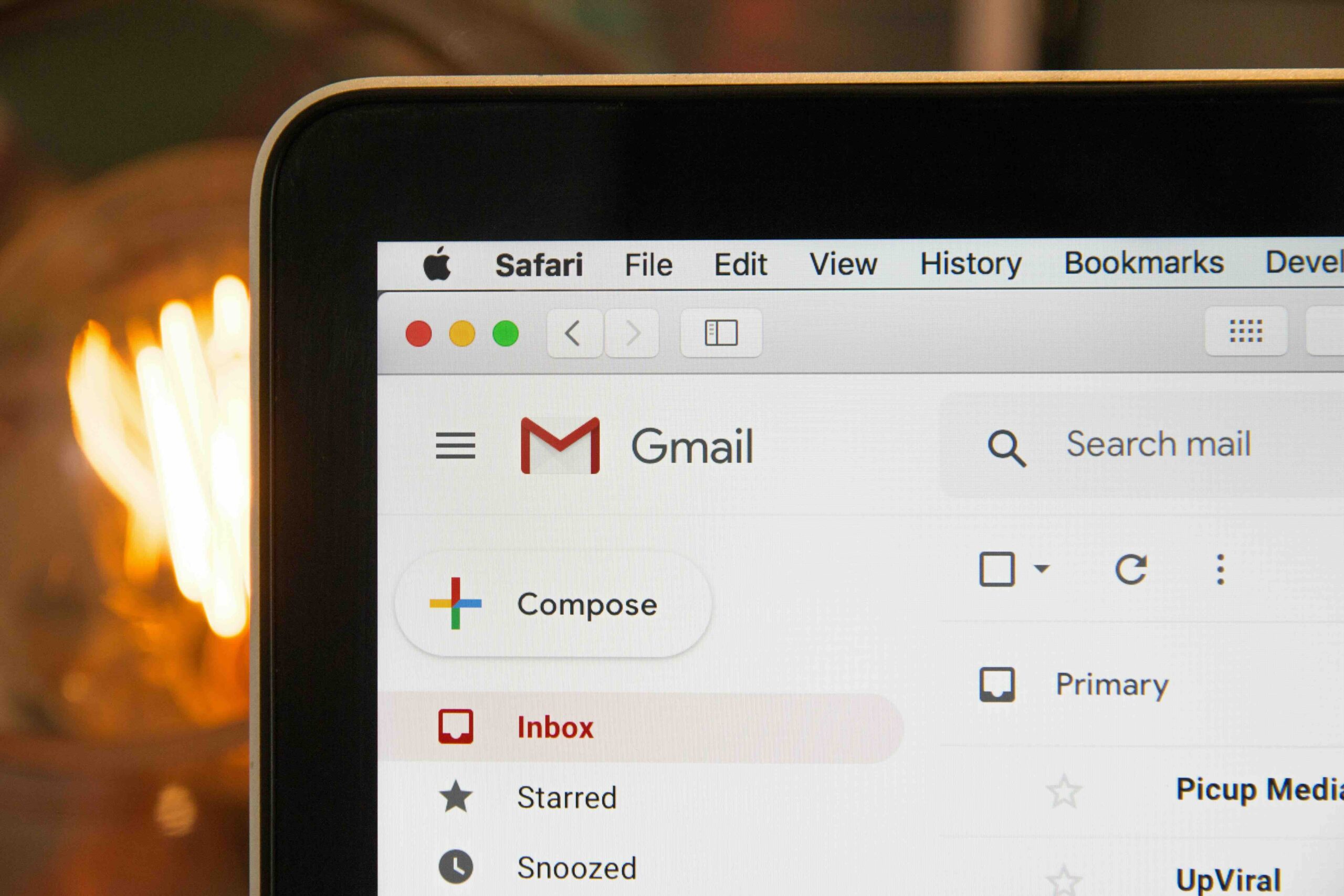
If you’re one of those regretting the name of their Gmail address upon set up, Google now allows users to change their existing Gmail address and still keep their data that include photos, messages, and emails. This added convenience also means that emails that are sent to the old Gmail address will still arrive at your inbox. Aside from that, your original Gmail address will still work for signing into Google services.
How do you change your Gmail address? Here’s a walkthrough:
- Go to your Google Account on your computer.
- Look for Personal info, then click email.
- Click Email.
- Select the Google Account email.
- Next to your email address, select Edit if you have the option enabled for your Gmail account
- Enter the new email address for your account. Choose one that isn’t already used by another Google Account.
- Follow the steps on the screen. A verification link will be sent to your new email address to confirm the changes.
What’s the catch?
Before you get excited, do note that you cannot change your email address if it ends in @gmail.com. Also if your Google Account is made through your work, school, or other group, you’ll might need to ask assistance from your administrator.
Aside from that, you cannot create a new Gmail address for the next 12 months AND you cannot delete the new Gmail address you created.